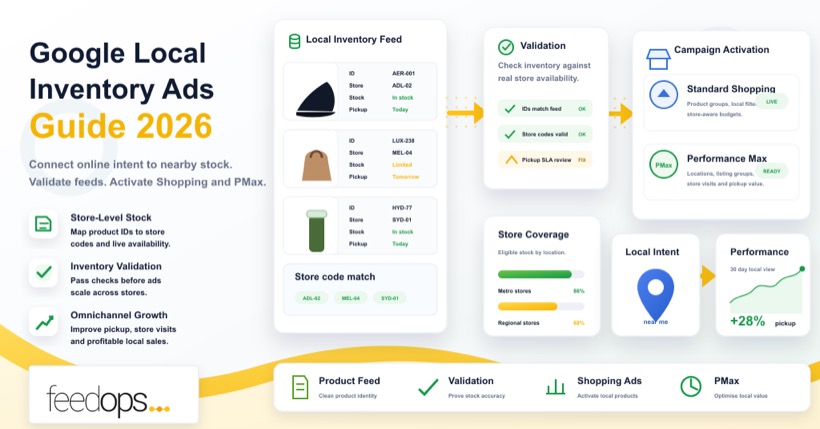
Quick answer
What are Google Local Inventory Ads in Performance Max?
Google Local Inventory Ads are product ads that show nearby shoppers what is available in a physical store. They connect a retailer's online product data, store data, and local inventory feed so Google can show products with local availability, store information, distance, pickup options, and other local shopping signals.
When local inventory data is connected to Performance Max, Google can use that in-store product availability across eligible campaign surfaces. The result is a bridge between online shopping behaviour and offline retail outcomes: shoppers discover products online, then buy online, use click and collect, or visit a nearby store.
Best answer for local inventory ads and PMax
Use Local Inventory Ads with Performance Max when you have physical stores, reliable store-level inventory, and a commercial reason to connect nearby shoppers with local stock. The campaign can only perform well if the product feed, local inventory feed, store codes, pickup settings, and Merchant Center diagnostics are accurate.
- Goal: increase online sales, click and collect orders, store visits, or all three.
- Data requirement: a primary product feed plus store-level inventory data that stays in sync.
- Optimisation lever: improve product titles, identifiers, store availability, pickup details, and campaign goals.
FeedOps recommendation
Run local inventory through Performance Max when online and store outcomes both matter.
If your goal is to maximise both ecommerce revenue and local store demand, Local Inventory Ads inside Performance Max are usually the strongest starting point. Performance Max gives Google room to use product data, local availability, audience signals, creative assets, conversion value, store goals, and location context together.
The important caveat is feed quality. Performance Max cannot compensate for a broken local inventory setup. If store codes do not match, stock is stale, pickup details are missing, prices are wrong, or products are disapproved in Merchant Center, the campaign loses the local signal it needs. Treat the feed layer as the foundation of the campaign, not a technical afterthought.
Simple rule: connect the local data, verify the inventory, keep product and store feeds accurate, then let Performance Max optimise against the right business goal.
How it works
Local Inventory Ads connect product, store, and shopper context.
A standard Shopping feed tells Google what you sell online. A local inventory feed tells Google what is available at each physical location. When both feeds line up, Google can show nearby shoppers that a product is available close to them. This can appear across Google surfaces where local shopping intent is present, including Search, Shopping, Maps, local panels, and other eligible placements.
The system depends on consistent identifiers. The product ID in the local inventory feed needs to match the relevant product in the primary feed. The store code needs to match the store information Google has for that location. Price, availability, quantity, and pickup details need to reflect reality closely enough that shoppers and Google can trust the information.
Local Performance Max vs Local Inventory Ads
Many retailers still use the phrase Local Performance Max, but the current practical setup is about local inventory data working inside the broader Performance Max framework. Earlier local campaign types were more focused on promoting locations. Local Inventory Ads add the product layer: the shopper can see what is in stock, where it is available, and whether it can be collected or purchased.
This is a meaningful difference. A location ad can tell a shopper there is a store nearby. A Local Inventory Ad can tell the shopper that the exact product they want is available nearby. That product-level relevance is why the feed matters so much.
Setup
How to set up Google Local Inventory Ads for Performance Max.
Local Inventory Ads are not difficult conceptually, but they require multiple pieces of data to agree with each other. Work through setup in this order so you avoid chasing campaign performance before the feed is ready.
1. Confirm store and business data
Make sure store locations, addresses, hours, phone numbers, and store codes are accurate. Store codes are the join between your local inventory data and the physical location Google understands. If the codes are inconsistent, local availability cannot be trusted.
2. Prepare the primary product feed
The primary feed should include clean product IDs, titles, descriptions, images, prices, availability, brand, GTIN, MPN where relevant, product type, Google product category, and landing pages. This is the product context that Google uses for matching and eligibility.
3. Build the local inventory feed
The local inventory feed shows which products are available in which stores. At minimum, it needs a product ID, store code, price, and availability. Depending on your setup, it may also include quantity, sale price, pickup method, and pickup SLA.
4. Complete inventory verification
Google may require an inventory verification process to confirm that the local feed matches real in-store stock. Treat this as a trust step. If the feed says a product is available and the store cannot fulfil it, shoppers lose confidence and Google may restrict the program.
5. Enable local products in Google Ads
Once Merchant Center is ready, connect the account to Google Ads and confirm local products are eligible for the right campaigns. In Performance Max, the campaign structure, location settings, conversion goals, and product groups determine how local inventory can be used.
6. Test before scaling
Start with a controlled set of stores, product categories, or regions if the catalogue is complex. Confirm that impressions, clicks, local product visibility, pickup behaviour, and store outcomes make sense before rolling the setup across every store and SKU.
Launch checklist
- Primary product feed is approved and product IDs are stable.
- Store codes match the stores used by Google and by your internal systems.
- Local inventory feed contains accurate availability, price, and store-level product data.
- Pickup method and pickup SLA are set when click and collect is part of the offer.
- Merchant Center diagnostics have been reviewed at account, feed, and item level.
- Performance Max campaigns are using the right location settings and conversion goals.
- Reporting is ready for online revenue, pickup orders, store visits, and store feedback.
The launch checklist matters because local inventory issues can be hard to spot once campaigns are live. A campaign can spend against a subset of products while hundreds or thousands of local SKUs are quietly excluded by diagnostics, mismatched store codes, stale availability, or feed processing issues. Do the unglamorous setup work before judging campaign performance.
Validation
How to get Local Inventory Ads validated.
Local Inventory Ads need more than a feed upload. Google needs enough confidence that your submitted local availability reflects what a shopper can actually buy, reserve, or collect from a nearby store. That is why validation is one of the most important steps in the launch process.
In practical terms, validation checks whether the local inventory feed, primary product feed, store data, pickup settings, landing pages, and real store availability are consistent. Google does not want a shopper to see a product as available nearby, travel to the store, and discover that the product was never there, the price was different, or the pickup promise could not be met.
1. Make the Merchant Center account eligible first
Before focusing on local inventory validation, make sure the Merchant Center account is healthy. The primary product feed should be approved, the target country should be correct, policies should be clean, and item-level diagnostics should be manageable. If the main feed is full of product disapprovals, missing identifiers, price mismatches, or landing page issues, local inventory validation becomes much harder.
Local products inherit much of their product meaning from the primary feed. A local inventory feed can say that SKU 123 is available in store A, but Google still needs the primary product data to understand what SKU 123 is, what it costs online, what image represents it, which category it belongs to, and whether it is eligible to advertise.
2. Confirm store codes before uploading inventory
Store codes are where many launches go wrong. The store code in the local inventory feed must match the store location Google understands. If your point-of-sale system uses one location ID, your ecommerce platform uses another, and Google Business Profile has a third naming convention, create a clean mapping table before launch.
Do not treat store code mapping as a one-time admin task. Store openings, closures, relocations, franchise changes, and system migrations can all break the relationship between store data and local product data. When that relationship breaks, products may be eligible in the feed but disconnected from the physical stores they are meant to represent.
3. Submit local inventory data that can survive a real-world check
The local inventory feed should reflect the stock reality a shopper will experience. At minimum, it should use stable product IDs, correct store codes, accurate availability, and the right local price. If you include quantity, sale price, pickup method, or pickup SLA, those fields need to be governed carefully as well.
Fast-moving inventory deserves extra caution. If stock changes every few minutes but the feed updates once a day, the local inventory promise may become unreliable. For high-demand, seasonal, clearance, limited-stock, or promotional products, increase feed update frequency where possible and consider whether limited availability should be represented differently from deep stock.
4. Prepare for Google's inventory verification process
Depending on the account, country, and setup, Google may require some form of inventory verification. This can involve checking submitted product availability against store reality, reviewing sample products, confirming that prices and availability match, and verifying that pickup information is accurate. The exact process can vary, but the principle is consistent: the submitted data needs to be trustworthy.
Make validation easier by keeping a simple evidence trail. Know which system is the source of truth for product ID, stock, price, pickup promise, and store code. Keep internal screenshots or reports available for sample products. Make sure store teams know that local inventory data may be checked. If a product is submitted as in stock, someone should be able to explain where that stock status came from.
Validation checklist
- Merchant Center account is active and product diagnostics are under control.
- Primary product feed IDs match local inventory feed IDs exactly.
- Store codes match the store locations connected to Google.
- Local price, sale price, and availability reflect what shoppers can actually access.
- Pickup method and pickup SLA are accurate for each product and store combination.
- Landing pages show local availability or pickup information clearly enough for shoppers.
- Store teams and ecommerce teams agree on the source of truth for stock and fulfilment promises.
Common reasons validation fails
Validation usually fails because the feed is technically present but commercially unreliable. Common causes include stale stock, mismatched store codes, products marked as available with no real store stock, pickup promises that differ between feed and website, prices that do not match, product pages that hide local availability, and product IDs that do not match between feeds.
If validation fails, avoid making random campaign changes. Go back to the data chain. Pick a handful of products, trace them from the primary feed to the local inventory feed, then to the product page, store stock system, pickup flow, and Merchant Center diagnostics. Once a few examples are clean end to end, the broader pattern usually becomes obvious.
Shopping Ads activation
How to activate Local Inventory Ads in Standard Shopping campaigns.
Standard Shopping campaigns can still be useful for Local Inventory Ads when you want more direct control over product groups, bids, budgets, and campaign structure. Performance Max is often the broader omnichannel engine, but Standard Shopping can be a good fit for testing, tighter category control, local-only experiments, or situations where you want cleaner product-level visibility.
The activation process starts in Merchant Center, not in the campaign. Before changing campaign settings, confirm that local inventory is approved, the correct Merchant Center account is linked to Google Ads, the local inventory feed is processing, and the products you want to advertise are eligible for the local inventory destination.
1. Link Merchant Center and Google Ads
The Google Ads account must be linked to the Merchant Center account that contains the approved product and local inventory data. If you use a multi-client account or have several Merchant Center accounts for regions or brands, double-check that the campaign is pulling from the right account.
2. Use the correct Shopping campaign and product scope
In a Standard Shopping campaign, make sure the campaign is using the correct feed, country of sale, and product scope. Product groups should include the products that have local availability. If you filter the campaign by brand, product type, custom label, channel, or item ID, confirm that those filters are not accidentally excluding local products.
This is where feed labels and custom labels can help. You might isolate products with strong store coverage, high local margin, click and collect eligibility, or deep stock. A label such as local_priority, pickup_ready, high_store_coverage, or clearance_local can help you build cleaner product groups and avoid spending on local products that are not ready.
3. Target locations where stores can actually fulfil demand
Local inventory campaigns should be aligned with the physical footprint. If a campaign targets regions where you do not have stores or where local stock is thin, it can waste budget or confuse reporting. Start with locations that have reliable store inventory and enough demand to generate learning.
4. Set budgets and bids for the local objective
Budget and bidding should reflect why you are using Standard Shopping. If the goal is control, keep the structure simple enough to read. If the goal is local testing, avoid spreading budget across too many stores and product groups at once. If the goal is profitability, use product labels and local stock depth to give stronger visibility to products with a real chance of converting.
5. Check that local products are actually receiving traffic
After launch, review product group data, Merchant Center diagnostics, location performance, search terms where available, and product-level activity. Do not assume that campaign activity means local inventory is working. Confirm that eligible local products are receiving impressions, that shoppers are seeing relevant local availability, and that store or pickup outcomes are moving in the right direction.
Standard Shopping activation checklist
- Merchant Center local inventory program is active and approved.
- Google Ads is linked to the Merchant Center account with the local feed.
- Shopping campaign uses the correct country, feed, and product scope.
- Product groups include eligible local products and do not filter them out accidentally.
- Location targeting matches the real store footprint.
- Budgets and bids are aligned with the test, category, or store strategy.
- Reporting separates local product performance from online-only products where possible.
Performance Max
Choose the campaign goal that matches the local outcome.
Performance Max can support different commercial goals. The right setup depends on whether the retailer cares most about online purchases, click and collect, store visits, or a blended omnichannel outcome. The wrong goal can make the campaign look efficient while missing the real business objective.
Use purchase value when online sales and click and collect matter most
If ecommerce revenue and pickup orders are the main outcome, optimise around purchases and conversion value. This allows Performance Max to use local availability as part of the shopping journey while still measuring revenue through online conversions. Products that are in stock nearby can become more compelling for shoppers who want speed and certainty.
Use store visits when foot traffic is the main goal
If the goal is to bring shoppers into physical stores, store visits can become a primary conversion action where available. Assign a sensible value to store visits based on average order value and in-store conversion rate. For example, if a store visit is worth roughly a quarter of an average in-store order, use that value to help bidding understand the commercial signal.
Use location groups when store strategy matters
Not every store needs the same treatment. You may want separate campaigns or asset groups for flagship stores, clearance stores, regions with different stock, or stores with different margins. Segment carefully, because too much fragmentation can reduce learning, but no segmentation can hide important local differences.
| Goal | Best fit | Watch out for |
|---|---|---|
| Online sales | Retailers with ecommerce tracking and click and collect revenue. | Do not ignore in-store impact if local stock is driving visits. |
| Store visits | Retailers focused on physical foot traffic and local market share. | Use realistic store visit values so bidding is not distorted. |
| Omnichannel ROAS | Retailers that can combine online, pickup, and store signals. | Reporting needs discipline so online and offline value are not double counted. |
PMax activation
How to activate Local Inventory Ads in Performance Max.
Performance Max uses Merchant Center product data, local inventory signals, conversion goals, creative assets, location context, and audience signals together. To activate Local Inventory Ads properly inside PMax, the campaign needs both eligible local inventory and a campaign setup that gives Google permission and reason to use it.
The mistake to avoid is thinking that PMax activation is just a switch. The campaign can only use local inventory well when the feed layer is clean, the store layer is connected, and the campaign goal values local behaviour. Otherwise, local inventory may technically exist but contribute very little to delivery.
1. Confirm local inventory approval in Merchant Center
Start by checking Merchant Center. Local inventory data should be approved, processing successfully, and free of major item-level or account-level issues. Review diagnostics for the primary feed and the local inventory feed. Products need to be eligible as products first before PMax can use them effectively as local products.
2. Connect store data and location assets correctly
Performance Max needs reliable location information to connect local inventory to shopper intent. Make sure the right business locations, store groups, or location assets are connected to the Google Ads account. If you only want certain stores to participate, use store groups carefully and keep the store mapping clean.
For larger retailers, store groups can support regional rollouts. You may launch local inventory in one state, one city, one store format, or one group of reliable stores before expanding. That gives the team time to prove that stock, pickup, store operations, and reporting can handle the extra visibility.
3. Choose conversion goals that value the local journey
If PMax is only optimising for ecommerce purchases, it may undervalue store visits or offline outcomes. If the goal is store traffic, store visits need to be available and valued appropriately. If the goal is click and collect, purchases and pickup-related conversion value should be tracked cleanly. If the goal is omnichannel growth, use a conversion setup that reflects both online and local value without double counting.
4. Include eligible local products in listing groups
Use listing groups to confirm that local products are included. If you split PMax by product type, margin, brand, inventory depth, or priority label, make sure the local products you care about are not sitting in an excluded group. Product filters can be useful, but they can also hide a local inventory setup from the campaign.
A strong local PMax setup often uses feed labels or custom labels to guide product inclusion. For example, a retailer may prioritise products with strong store coverage, high local margin, or reliable pickup availability. Products with unstable stock, low margin, poor titles, or weak images may need feed work before they deserve campaign scale.
5. Build asset groups around real local intent
Asset groups should support the shopper journey. If the campaign promotes local availability, creative and landing pages should not feel generic. Use assets that reinforce nearby availability, store pickup, fast access, local range, or product expertise where appropriate. The feed still does much of the heavy lifting, but creative can help PMax understand and support the local proposition.
6. Watch early delivery carefully
After activation, review Merchant Center diagnostics, PMax product performance, location performance, store visits where available, click and collect orders, and product-level conversion value. Early delivery can reveal whether PMax is finding local demand or simply spending on the online parts of the catalogue.
Performance Max activation checklist
- Local inventory feed is approved and current in Merchant Center.
- Merchant Center and Google Ads are linked correctly.
- Location assets, business locations, or store groups are connected and accurate.
- Conversion goals reflect online sales, pickup orders, store visits, or the chosen omnichannel outcome.
- Listing groups include the local products you want PMax to promote.
- Custom labels identify products with strong local availability, margin, pickup readiness, or priority.
- Asset groups and landing pages support local availability instead of sending shoppers into a generic path.
Once the campaign is live, give the system enough data to learn, but do not leave the feed unattended. PMax may find demand patterns faster than your operations team expects. If products move quickly, store stock is thin, or pickup promises are not reliable, the campaign can expose those operational gaps quickly.
Store data
Store-level data quality determines whether local intent can be trusted.
Local Inventory Ads depend on a clean relationship between product data, store data, and inventory data. The product feed answers, "What is this item?" The local inventory feed answers, "Where is it available?" Store data answers, "Which physical location can fulfil this shopper's local intent?" If any of those answers are inconsistent, the system becomes unreliable.
Store codes are one of the most important details. They need to be consistent between Merchant Center, the local inventory feed, Google Business Profile, point-of-sale systems, ecommerce platforms, and any middleware or feed management layer. If different systems use different location IDs, create a mapping table and treat it as a controlled data asset.
Pickup and fulfilment data
Pickup settings can make local inventory more useful for shoppers. If a product is available for same-day pickup, next-day pickup, ship to store, or store pickup after transfer, the feed should reflect that accurately. Overpromising pickup speed creates poor store experiences and can undermine trust. Underusing pickup data can reduce the value of local availability for shoppers who want certainty before travelling.
For click and collect retailers, local inventory is part of the conversion experience. The ad promise, product page, checkout, collection instructions, and store fulfilment all need to agree. A shopper who clicks because a product appears available nearby should not arrive at a product page that shows a different location, unavailable status, or unclear pickup timing.
Store data fields to govern closely
- Store code: The unique ID that connects a store to local inventory data.
- Address and hours: Store information that affects shopper confidence and local relevance.
- Availability: Whether the product is in stock, out of stock, limited, or available for order.
- Quantity: Useful where stock depth affects fulfilment confidence.
- Pickup method: Whether shoppers can buy online and collect, reserve, or collect later.
- Pickup SLA: How quickly the product can be ready for collection.
The operational side matters here. A feed can be perfectly formatted and still fail commercially if store stock is not updated often enough. High-velocity products, seasonal products, promotions, and store transfers need special attention because they create the biggest gap between what systems say and what customers experience.
Feed optimisation
Local Inventory Ads are only as good as the feed behind them.
The local feed tells Google where a product is available, but the primary Shopping feed still carries much of the product meaning. If the title is vague, the image is weak, the product type is broad, or the identifiers are missing, local availability will not fix the matching problem.
Optimise local inventory campaigns with the same feed discipline used for Google Shopping ads. Product titles should be specific and readable. Product types should reflect your real catalogue hierarchy. GTINs and brands should be accurate. Images should match variants. Price, sale price, and availability should match the product page and the store reality.
Feed fields to prioritise for LIAs
- id: Must stay stable and match between primary and local inventory feeds.
- store_code: Must align with the correct physical location.
- availability: Must reflect whether the product can actually be bought or collected.
- price and sale_price: Must match local and online expectations where applicable.
- pickup_method and pickup_sla: Help shoppers understand whether pickup is available and how quickly.
- title, image, brand, GTIN, product_type: Help Google understand and match the product.
If you need a broader framework, use the Google Shopping Feed Optimization Guide. If titles are the main gap, use the Google Shopping Title Optimization Guide. For campaign structure, labels, ROAS bands, and product-level review, use the Google Shopping Ads Management Guide. If products are blocked by diagnostics, work through the relevant Google Merchant Center errors first.
Use labels to separate local products intelligently
Custom labels can help distinguish products that should be pushed locally from products that should stay online-only. For example, a retailer might label products by store availability depth, margin band, seasonal priority, clearance status, pickup eligibility, or local demand. Those labels can support Performance Max listing groups, reporting, and future campaign segmentation.
Be careful not to over-segment too early. A useful label should support a decision. If a label does not change budget, bidding, reporting, creative, feed rules, or operational priority, it may be noise. Start with labels that help answer practical questions: which local products are high margin, which are store-only, which are available across most stores, which are pickup-ready, and which are risky because stock changes too quickly.
Measurement
Measure both online performance and local store impact.
Local Inventory Ads sit between digital and physical retail, so measurement needs more than one view. Google Ads can show campaign metrics such as impressions, clicks, conversions, conversion value, ROAS, and store visits where available. Merchant Center can reveal product and feed health. Store systems can show whether local demand actually changed.
Online performance
Review conversions, conversion value, ROAS, click-through rate, and product performance. Compare products and categories with local inventory against products that are online-only. Look for stronger click and collect behaviour, better conversion rates from nearby shoppers, and products that perform differently by region.
Store visit and offline signals
Where store visit reporting is available, use it carefully. Store visits are modelled and should be interpreted with business context. Compare campaign trends with POS data, store manager feedback, pickup orders, regional revenue, and foot traffic data if available. The goal is not perfect attribution; it is enough confidence to make better budget and feed decisions.
Product-level diagnostics
Product-level reporting helps you separate feed problems from demand problems. Products with local stock but no impressions may have weak titles, missing identifiers, poor category mapping, or low demand. Products with clicks but poor outcomes may have price, pickup, landing page, or store fulfilment issues.
Measure at three levels. At the campaign level, review spend, revenue, ROAS, store visits, and conversion value. At the store or region level, review which locations are receiving local visibility and whether that matches stock, demand, and business priorities. At the product level, review which SKUs receive impressions, clicks, pickup behaviour, store visits, and sales.
If store visit data is not available or is too modelled for your needs, supplement it with practical business signals. Compare stores included in local inventory campaigns with similar stores that are not prioritised. Ask store teams whether customers are mentioning online product discovery. Review click and collect orders by store. Look at product-level pickup demand. None of these signals is perfect alone, but together they can show whether local visibility is changing shopper behaviour.
Troubleshooting
When Local Inventory Ads do not work, diagnose feed, store, and campaign layers separately.
Local Inventory Ads can fail quietly. The campaign may be active, the products may exist in Merchant Center, and the store data may look correct at a glance, yet local ads still do not show as expected. Avoid guessing. Work layer by layer so you can identify whether the issue is product eligibility, inventory data, store matching, pickup settings, or campaign structure.
No local impressions
If local products receive no impressions, first confirm Merchant Center eligibility and local inventory status. Check whether the products are approved for the right country, whether local inventory data has processed, whether store codes match, and whether the products are included in the campaign's listing groups. Then check demand and search relevance. Some products may be eligible but rarely searched for locally.
Clicks but poor store outcomes
If ads receive clicks but store results are weak, look at the shopper path. Is the product page clear about local availability? Is pickup visible? Does the store shown in the ad match the store shown on the landing page? Are stock levels accurate enough? Are store staff able to fulfil the promise? Sometimes the campaign is doing its job and the issue is fulfilment or landing page clarity.
Disapprovals or mismatches
Price and availability mismatches are common because they involve several systems: ecommerce platform, POS, local inventory feed, primary product feed, Merchant Center, and the live landing page. Find the source of truth for each field. Then check update frequency, transformation rules, variant handling, sale price logic, and out-of-stock behaviour.
Quick troubleshooting map
- Merchant Center issue: Check diagnostics, destination eligibility, product approvals, and local inventory processing.
- Store issue: Check store codes, business profile data, location groups, and address consistency.
- Feed issue: Check ID matching, stock freshness, pickup fields, price, sale price, and variant data.
- Campaign issue: Check listing groups, conversion goals, location targeting, budgets, and campaign learning.
- Experience issue: Check landing pages, pickup messaging, store selector behaviour, and checkout flow.
Mistakes
Common Local Inventory Ads mistakes.
- Using inconsistent product IDs between the primary feed and local inventory feed.
- Letting store codes drift between POS, Merchant Center, Google Business Profile, and feed systems.
- Showing products as available when store stock is stale or unreliable.
- Missing pickup method or pickup SLA data when pickup is important to the shopper journey.
- Optimising only the campaign and ignoring weak product titles, images, product types, and identifiers.
- Using store visit goals without assigning a realistic value to offline visits.
- Rolling out every store at once before testing feed quality and local reporting.
The biggest mistake is treating local inventory as a media toggle. Local Inventory Ads are a data program before they are a campaign program. If the store-level data is wrong, Performance Max may still spend, but the shopper experience and local trust can break down quickly.
Official references
Check the Google source material before launch.
Use this guide as the practical workflow, then verify account-specific requirements against Google's official documentation before changing live feeds or campaigns.
FAQ
Google Local Inventory Ads Performance Max FAQ.
What are Google Local Inventory Ads?
Google Local Inventory Ads show shoppers products that are available in nearby physical stores. They use Merchant Center product data, local inventory feeds, store data, and Google Ads campaigns to connect online product discovery with local availability.
The key difference from standard Shopping activity is the store-level signal. A normal Shopping ad can tell Google what product you sell online. A Local Inventory Ad can tell Google that the same product is available at a specific nearby store, with a local price, availability status, and pickup option where relevant.
Do Local Inventory Ads work with Performance Max?
Yes. Local inventory data can be used with Performance Max so Google can promote eligible in-store products when local shopping intent is present. The setup still depends on Merchant Center, store data, and verified local inventory feeds.
Performance Max does not remove the need for feed quality. It gives Google more surfaces and signals to work with, but the campaign still needs approved products, matching IDs, accurate store codes, reliable local availability, and conversion goals that reflect the value of local shoppers.
How do I get Local Inventory Ads validated?
Start in Merchant Center. Make sure the primary product feed is approved, then submit local inventory data with product IDs that match the primary feed and store codes that match the correct locations. Review diagnostics at account, feed, and item level before asking the campaign to spend.
Google may review whether submitted local inventory reflects store reality. That means prices, availability, pickup promises, landing pages, and store data need to agree. The easiest way to prepare is to choose sample products and trace each one from the primary feed to the local inventory feed, product page, store stock system, and pickup flow.
If validation fails, do not start by changing bids. Fix the data chain first. Most validation issues come from stale stock, mismatched store codes, unavailable products submitted as available, unclear local landing pages, or pickup settings that do not match what stores can fulfil.
How long does Local Inventory Ads validation take?
The timing can vary by account, country, feed quality, and whether Google needs extra checks. A clean setup with approved product data, accurate store codes, and reliable local inventory is much easier to validate than a setup with product disapprovals or inconsistent store data.
Plan for validation as part of the project timeline, not as a final checkbox. Give yourself time to fix Merchant Center diagnostics, test feed processing, confirm store mappings, and review sample products before expecting campaigns to scale.
How do I activate Local Inventory Ads in Standard Shopping campaigns?
First, local inventory needs to be approved in Merchant Center and the correct Merchant Center account needs to be linked to Google Ads. Then the Standard Shopping campaign needs to use the right feed, country, product scope, and location targeting.
Review product groups carefully. If the campaign is filtered by brand, product type, custom label, channel, or item ID, you may accidentally exclude local products. Use custom labels to isolate products that are genuinely ready for local visibility, such as products with high store coverage, reliable pickup, strong margin, or deep stock.
After launch, check that local products are actually receiving impressions and clicks. Campaign activity alone does not prove that Local Inventory Ads are working; you need to confirm that eligible local products are included and that local outcomes such as pickup orders, store visits, or regional sales are improving.
How do I activate Local Inventory Ads in Performance Max?
To activate Local Inventory Ads in Performance Max, confirm local inventory approval in Merchant Center, link Merchant Center to Google Ads, connect accurate location assets or store groups, and make sure the campaign's listing groups include the local products you want promoted.
The conversion setup matters. If the campaign should drive ecommerce revenue, use purchase and conversion value goals. If the campaign should drive store visits, make sure store visits are available and valued sensibly. If the campaign should support click and collect, track pickup-related revenue or actions as cleanly as possible.
PMax can use local inventory signals across eligible surfaces, but it still needs clean feed data. Product titles, identifiers, images, product types, stock status, pickup settings, and store codes all influence whether the local product opportunity is clear enough for the campaign to use.
What is the difference between a product feed and a local inventory feed?
The primary product feed describes the product. It carries fields such as ID, title, description, image, price, brand, GTIN, product type, Google product category, and landing page. This is the main product meaning Google uses for matching and eligibility.
The local inventory feed describes where that product is available. It connects the product ID to a store code and adds store-level availability, local price, sale price, quantity where relevant, pickup method, and pickup SLA. Both feeds need to match through stable product IDs.
Do I need a separate local products feed?
Most retailers need a primary product feed plus local inventory data. Some setups may also use local product data depending on account structure and Google requirements, but the practical principle is the same: Google needs to understand the product and the store-level inventory relationship.
If you are unsure which feeds your setup needs, start by auditing the product data you already send to Merchant Center, then map which fields exist at product level and which fields exist at store level. Product identity belongs in the primary feed. Store availability belongs in the local inventory layer.
What are store codes and why do they matter?
Store codes are the unique identifiers that connect inventory records to physical store locations. They need to match across Merchant Center, Google Business Profile or connected store data, point-of-sale systems, ecommerce systems, and any feed management platform.
If store codes are wrong, Google may not be able to connect local stock to the right store. This can cause products not to show, stock to appear against the wrong location, or validation problems that look confusing until the store mapping is checked.
What product fields matter most for Local Inventory Ads?
The most important local fields are product ID, store code, availability, price, sale price, pickup method, pickup SLA, and quantity where used. The most important primary feed fields are title, image, brand, GTIN, product type, Google product category, price, availability, and landing page.
Local inventory does not rescue weak product data. If titles are vague, images are poor, GTINs are missing, or product types are too broad, Google has less confidence about which searches the product should match. Use the feed optimisation and title optimisation guides to strengthen the product layer before expecting local campaigns to scale.
Why are my local products approved but not showing?
Approved does not always mean active at scale. Products may have low local search demand, weak product relevance, limited stock coverage, restrictive product groups, campaign budget limits, location targeting issues, low bids, missing pickup details, or poor landing page signals.
Work through the layers in order. Check Merchant Center diagnostics first, then store codes, local feed processing, campaign listing groups, location targeting, conversion goals, and product-level performance. If only some categories are not showing, compare their titles, identifiers, stock depth, images, and local availability against categories that do show.
Can Local Inventory Ads support click and collect?
Yes, Local Inventory Ads can support click and collect when the feed and website experience make pickup clear. Pickup method and pickup SLA help shoppers understand whether the product can be collected and how quickly it will be ready.
The important part is consistency. The ad, product page, store selector, checkout, confirmation email, and store fulfilment process should all tell the same story. If the feed promises same-day pickup but the product page or store cannot support it, the campaign may create demand that the business cannot satisfy.
Should I use Local Inventory Ads for every product?
No. Some products are better candidates than others. Strong candidates usually have reliable store stock, meaningful local demand, clear product data, strong images, decent margin, and a store or pickup experience that shoppers trust.
Be more cautious with products that have unstable inventory, very low stock depth, poor product data, weak margin, unusual fulfilment rules, or a high chance of disappointing shoppers. Use custom labels to separate local-ready products from products that need feed or operational work first.
Should I use ROAS or store visits for Local Inventory Ads?
Use ROAS or conversion value when online sales and click and collect matter most. Use store visit goals when the main objective is measurable foot traffic. For omnichannel retailers, both signals may matter, but reporting needs to be carefully separated.
The best answer depends on the business model. A retailer with strong click and collect revenue may care about online conversion value first. A retailer that sells high-consideration products in store may care more about store visits and assisted offline revenue. The campaign goal should match the commercial behaviour you actually want.
How should I measure Local Inventory Ads performance?
Measure campaign performance, product performance, and store impact separately. Campaign reports show spend, clicks, conversions, conversion value, ROAS, and store visits where available. Product reports show which SKUs receive demand. Store and POS data can show whether local visibility is translating into pickup orders or store revenue.
Do not rely on a single metric. Local Inventory Ads influence a mixed journey: some shoppers buy online, some collect, some visit a store, and some research before buying later. The best reporting combines Google Ads, Merchant Center diagnostics, ecommerce data, pickup orders, POS trends, and store feedback.
How often should local inventory data update?
Update frequency should match how quickly your stock changes. Slow-moving products may tolerate less frequent updates. Fast-moving products, promotions, clearance items, seasonal products, and limited stock should update more often because the gap between feed data and store reality can become painful quickly.
If you cannot update inventory frequently, be careful about which products you push through local campaigns. Products with deep stock and stable availability are safer than products where one or two sales can make the feed inaccurate.
How can FeedOps help with Local Inventory Ads?
FeedOps helps retailers audit, map, optimise, and maintain product feeds and local inventory data so Merchant Center and Google Ads have cleaner product, store, and availability signals to work with.
That includes finding product feed gaps, improving titles and categories, mapping store codes, reviewing local inventory fields, identifying approval and validation risks, and helping structure product labels so Shopping and Performance Max campaigns can make better use of the data.